Beta features
Some tools are in beta: they work, they are still changing, and they are opened to testers first. They wear a small Beta tag. If you do not have one yet, you can still open it and look around, and ask for it in one line.
The beta features
| Feature | Where | What it does |
|---|---|---|
| Generator | Generator tab | Start a character from a grid of new faces, then pick its hair, beard and accessories the same way. |
| Deformers | Deformers tab | Shape the whole head with Spherize, Block, Spikes and Blobs. |
| MetaHuman body | Body tab | A full MetaHuman body under your character: height, build and proportions. Clothing comes with it, and so do New Full and New Mannequin on the start panel. |
| Garment | Garment tab | Draw a sewing pattern, sew it and drape it on the body with a cloth simulation. |
| Animation | Animation tab | Body loops and Kimodo motions on your MetaHuman, with the playback bar. |
| Make a motion | Animation tab | Type a sentence and get a motion made for your character. |
| Speech | Speech tab, GNM head | Type a line, text to speech and lip sync, with its timeline. |
Everything else in the studio, from Skin and Makeup to Rig and Export, is open to everyone. Hair and Wrinkles wear the Beta tag because they are still changing, but everyone can use them.
A locked feature
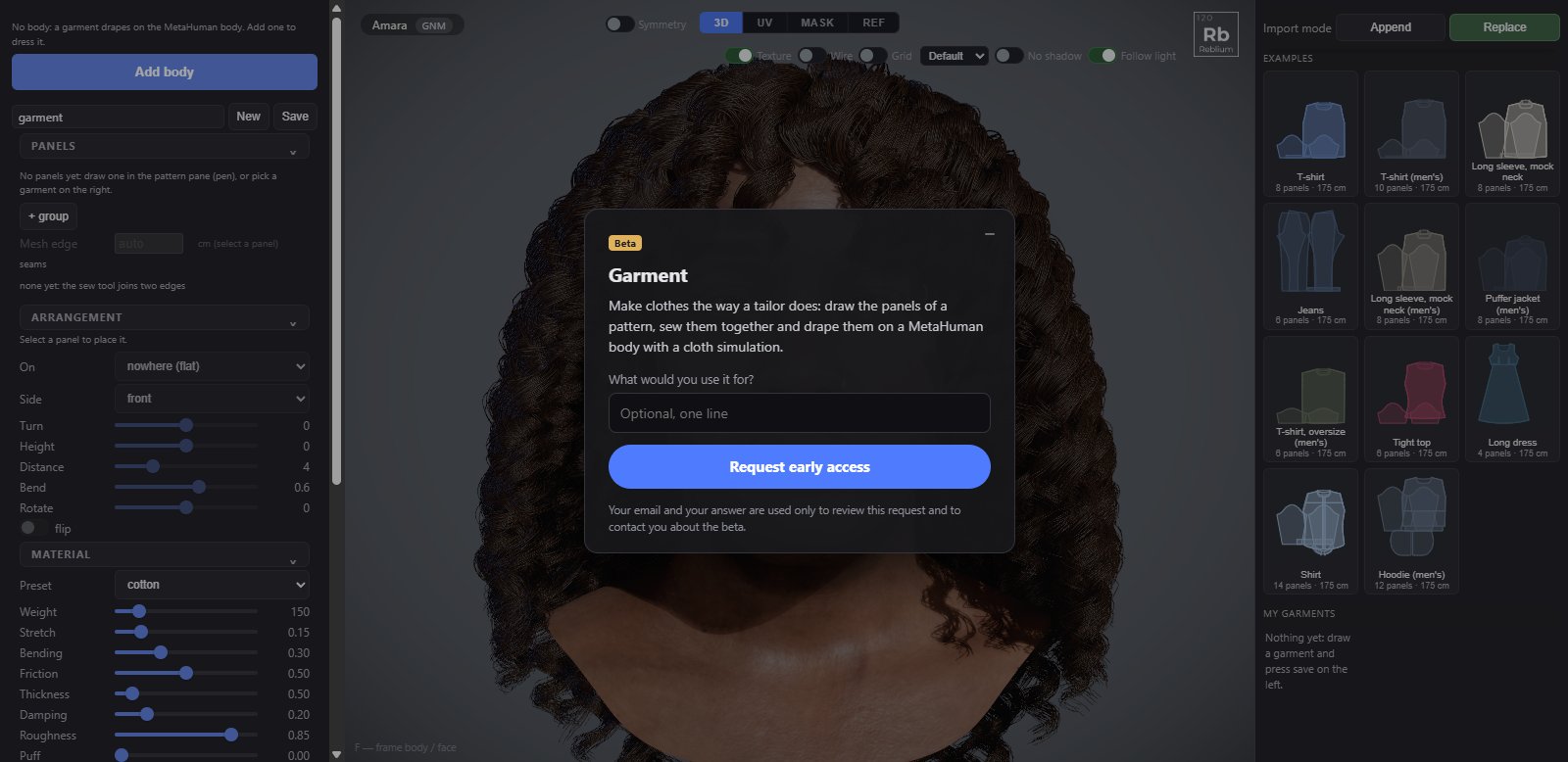
A beta feature you do not have yet is not hidden. Its tab opens and shows the real panel, dimmed, and the pointer says it is not for use. You can orbit and zoom, open the groups and read the controls; nothing can be changed. A card sits over the view with the feature's name and a sentence about it.
Request access
- Open the beta tab. The card says what the feature does.
- If you are not signed in, press Sign in first: the request is tied to your account.
- Under What would you use it for?, write one line if you like. It is optional.
- Press Request early access. The card says Requested, waiting for approval. Every request is reviewed by a person, with a reply within 48 hours.
- When it is approved, the card says so: press Reload and the feature is yours.
The minimise button, Esc or a click beside the card puts it away as a bar at the top of the view, Beta: request access, so you can look around the tool. Click the bar to bring the card back. A part inside a tab, such as Make a motion, shows a small Request access button in its place.