Start a character
The studio opens on the Generator, ready to pick a new face. File, New… opens the start panel with every way to begin, in two columns: MetaHuman on the left, GNM on the right. File, Open… lists your characters.
NewFile, New…OpenFile, Open… (Ctrl+O)Close×, Esc, or a click outside
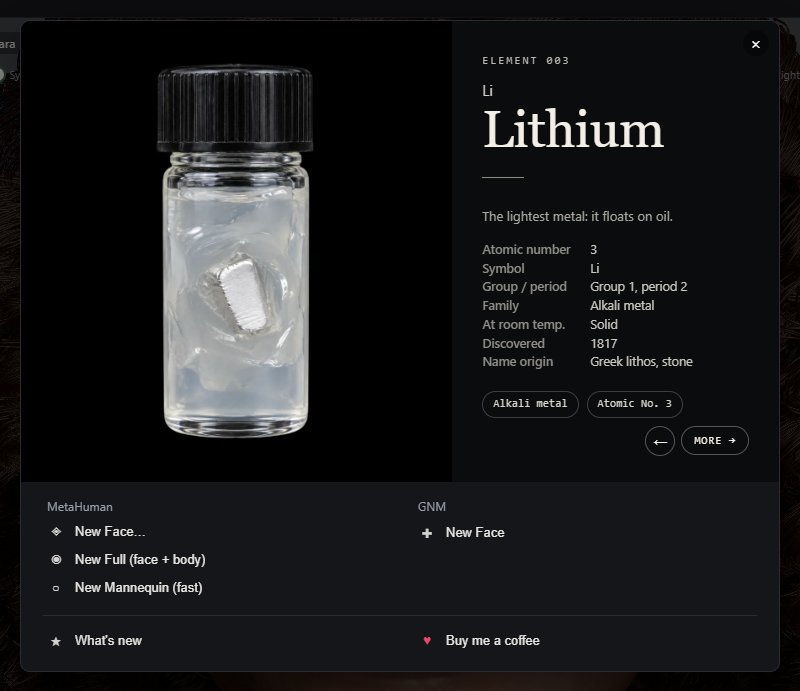
MetaHuman
| Control | What it does |
|---|---|
| New Face… | Your own MetaHuman: point at the folder Unreal exported (with its textures) or at a single head.dna file. See Bring in a MetaHuman. |
| New Full (face + body) Beta | Ada with a full MetaHuman body under her, on the Body tab. |
| New Mannequin (fast) Beta | A plain clay MetaHuman with a full body and no skin textures, so it opens faster. For clothing and animation. |
To try a MetaHuman without a file of your own, choose New Face… and then Example: Ada, a sample MetaHuman with its textures. The samples belong to Epic Games.
GNM
| Control | What it does |
|---|---|
| New Face | Starts from a head generated from GNM, Google's open head model. On the Generator it just closes the panel: the grid behind it is your new character. A GNM character has no body; convert it to a MetaHuman for one. |
Open
File, Open… (Ctrl+O) shows Your characters: every character you saved, with its picture; click one to open it. From a file on disk… opens a .gnmc.json file. At the foot of the start panel, What's new opens the latest posts.
Which one?
| You want to | Start with |
|---|---|
| Make a face from scratch, fast | GNM, New Face, then the Generator. |
| Work on a MetaHuman you made in Unreal | MetaHuman, New Face… |
| Try the MetaHuman tools | New Face…, then Example: Ada; or New Full. |
| Dress a body or animate it | New Full, or New Mannequin for speed. |
| Carry on with a character | File, Open…, or My characters. |