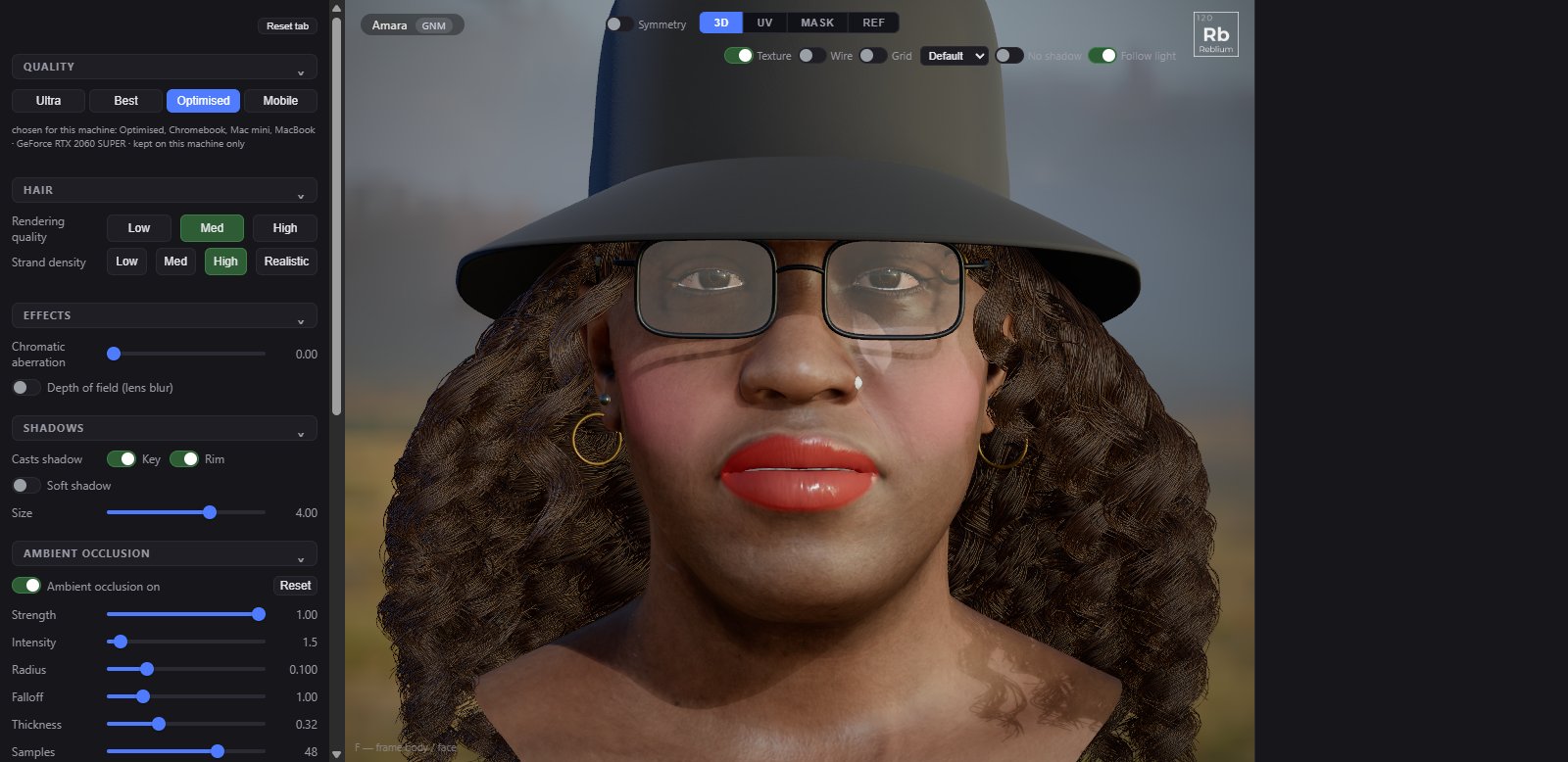
Settings decides how the studio draws in this browser: the quality tier, how heavy the hair is, lens effects, shadows, ambient occlusion and the tone curve. None of it changes the character's shape, and the exports are not affected.
TabSettings, at the end of the strip, or ⚙ Settings in the menu barKeptquality, hair and ambient occlusion on this machine; the rest with the character
The Settings tab: quality, hair, effects, shadows and ambient occlusion.
quality
Tier
For
What it does
Ultra
A workstation, RTX 3080 and up
Ambient occlusion at full resolution, soft shadow, 4x anti-aliasing, up to 2x pixel ratio.
Best
A PC workstation or Mac Studio
Ambient occlusion at half resolution, soft shadow, 4x anti-aliasing, up to 1.5x pixel ratio.
Optimised
A Chromebook, Mac mini or MacBook
Ambient occlusion at half resolution, no soft shadow, 4x anti-aliasing, up to 1.25x pixel ratio.
Mobile
Phones and tablets
No ambient occlusion, no soft shadow, no anti-aliasing, 1x pixel ratio.
The studio picks a tier for this machine the first time; the line under the buttons says which and why.
hair
Control
What it does
Rendering quality
Low: a camera-facing line, the fastest. Med: a flat ribbon. High: a ribbon with more segments, for smooth curls.
Strand density
High grows each style as made; Med and Low fewer, thicker strands; Realistic twice as many, thinner.
effects
Control
What it does
Chromatic aberration
Red and blue separate toward the corners, like a lens. 0 is a perfect lens.
Depth of field (lens blur)
Real depth of field: the ears and shoulders soften while the eyes stay sharp. Then focus offset, aperture and max blur. Costs a few ms a frame.
shadows
Control
What it does
Casts shadow
Which lights cast shadows: Key and Rim.
Soft shadow
Shadows that are sharp near the blocker and soft further away, like a real softbox. It follows the quality tier; ticking it here stands until the tier changes.
Size
How big the light feels: widens the soft shadow.
ambient occlusion
Control
What it does
Ambient occlusion on
The same switch as AO in the View menu.
Reset
Back to the tier's values.
Strength, Intensity, Radius, Falloff, Thickness
How much shadow the creases get, and how far each point looks for what shades it.
Samples, Denoise, Resolution
Quality against speed.
viewport
Control
What it does
Camera FOV
The field of view. The lens list over the view sets it too.
Wire opacity
How strong the Wire switch draws.
Export fps
The frame rate of the video Speech's Record button writes.
tone mapping and vignette
Control
What it does
Curve
None, Linear, Reinhard, Cineon, ACES filmic or AgX: how bright light is squeezed into the screen's range.
Exposure, Aperture, Shutter, ISO
Brightness, in stops. Exposure is the one to reach for; the others say the same the way a camera would. No blur or grain.
Gamma, Log view
A display trim, and a flat view to see the whole range. Turn Log view off before judging.
Reset tone mapping
Back to the default.
Vignette
amount, radius, outer: darker corners, like a lens.
TipJudge skin at Best or Ultra with the vignette at 0; then put the vignette back for the portrait.
Common problems
What you see
Why
What to do
The studio is slow
The tier is too high for this machine, or the hair is heavy.
Pick a lower tier; set hair Rendering quality or Strand density lower.