Makeup is a stack of layers, one per product: foundation, contour, blush, highlighter, eyeshadow, eyeliner, lipstick and lip gloss. Each layer knows where it goes on the face; you choose a look, a finish and a colour, and touch it up with a brush. The order of the layers is the order they are applied.
OpenMakeup, in the strip after SkinShelfone chip per product, then paint on and wipe offLibrarymakeup library, in the right panel, one tab per productUndoCtrl+ZLeaveEsc, or another tab
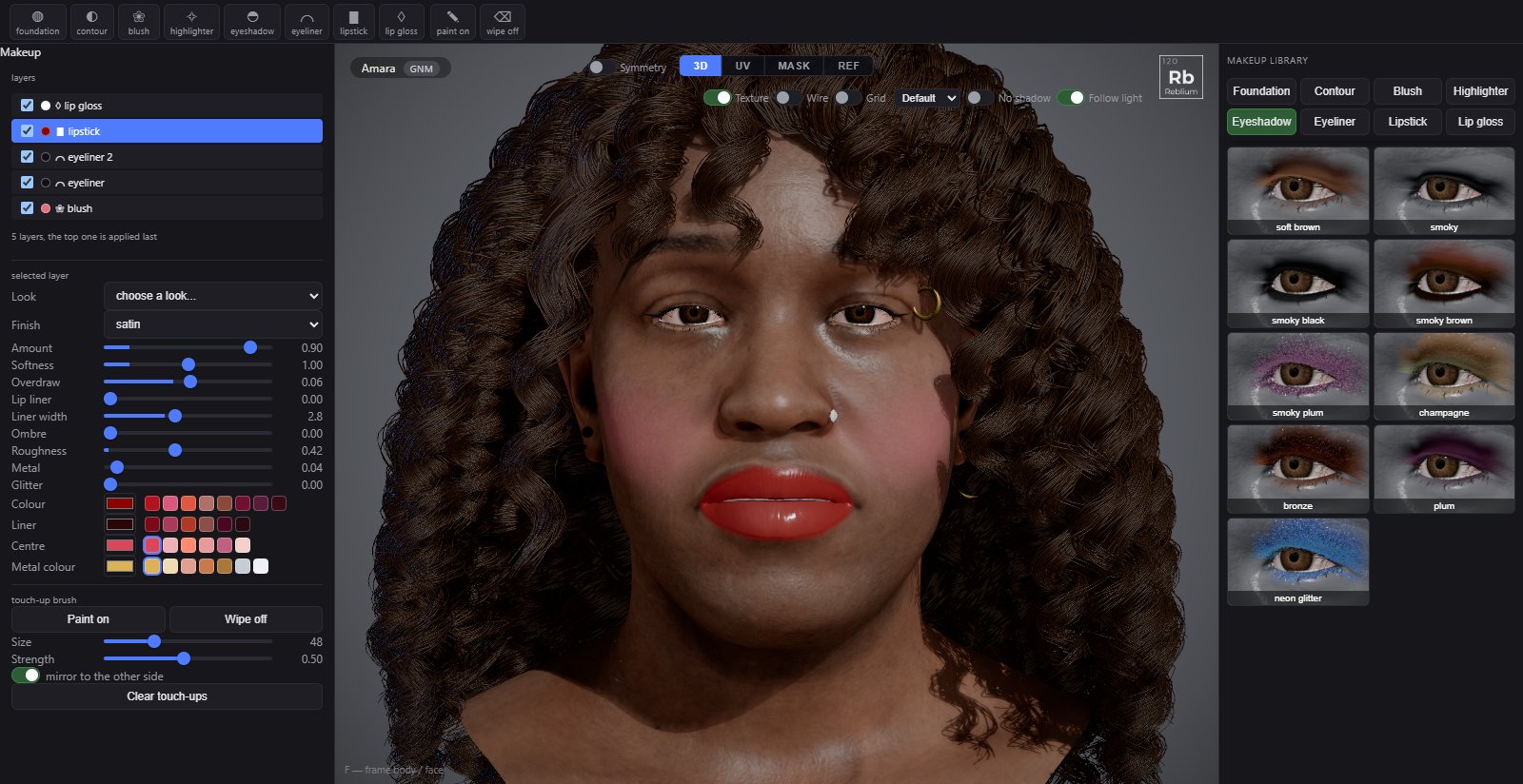
Makeup: the products on the shelf, a lipstick layer selected with its look, finish, lip rows, colours and touch-up brush, and the makeup library on the right.
How it works
Every product is drawn from the face itself: the lids, the lip line you painted, the cheekbones and the brow are found on this character, so a layer lands in the right place on any face. A layer is a recipe, not a picture: its sliders can be changed at any time, and the touch-ups you brush on are kept as strokes and replayed, so they survive a colour change.
The layers list is the stacking order: the top of the list is applied last, over the others. A new product drops in at its natural rank, foundation at the bottom and gloss at the top, and you can drag a row or use the arrows to change that.
Usage
Open Makeup and click a product on the shelf, lipstick for instance. A layer appears in the list and is selected; its rows show under selected layer.
Or click a look in the makeup library on the right: each product has its own tab, and a click restyles that product's layer or adds it. Pick a look as a starting point, then a finish: matte, satin, gloss, metallic or glitter. Set the amount and the colours.
Add the other products the same way. Reorder with ▲ and ▼ if a product should sit over another; duplicate a layer with ⧉ for a second coat.
Touch it up: paint on adds the selected layer where you brush, wipe off removes it; Ctrl flips the brush while you hold it. mirror to the other side copies the touch-ups across, clear touch-ups removes them.
Leave with Esc. The layers are saved with the character.
Options
The shelf
Chip
What it adds
foundation
Evens the skin in a shade matched to the face. It stays under everything else.
contour
Soft shade under the cheekbones, at the temples, along the jaw and down the nose.
blush
Colour on the cheeks.
highlighter
Light on the cheekbones, the nose bridge, the brow bone, the inner corners and the cupid's bow.
eyeshadow
Colour on the lids, a lid colour blending into a crease colour.
eyeliner
A line along the lashes, with a wing.
lipstick
Colour on the lips, with liner and ombre.
lip gloss
A clear, wet shine on the lips.
paint on
The touch-up brush: paints the selected layer onto the head. Ctrl wipes. Click the chip again to put the brush down.
wipe off
The touch-up brush the other way round: wipes the selected layer off. Ctrl paints.
Layers
Control
What it does
A layer row
Click to edit it. Drag up or down to change the order: higher rows go on top.
▲ ▼
Move the layer up (applied later, over the ones below) or down.
⧉
Duplicate this layer, touch-ups and all.
×
Delete this layer. Ctrl+Z brings it back.
Selected layer
The rows depend on the product; these are the lipstick's, the fullest set. Eyeshadow has a lid and a crease colour, eyeliner a wing, contour and blush a placement, gloss only a shine.
Control
What it does
Default and range
Look
A starting point: classic red, nude, berry, coral, pink, black cherry, metallic rose, gold glitter for lipstick. Every slider stays yours to change.
Finish
Matte, satin, gloss, metallic or glitter: sets roughness, metal and glitter together.
Amount
How much of it: 0 is none, 1 full strength.
0.9, from 0 to 1
Softness
Crisp edge at 0, blended out at 1; past 1 it spreads into a wide haze.
1, from 0 to 2
Overdraw
Below 0 stays inside the lip line, above 0 paints past it: fuller lips.
0.06, from -0.35 to 0.45
Lip liner
A darker line around the edge of the lips, in the liner colour.
0, from 0 to 1
Liner width
How wide the lip liner is.
2.8, from 0.5 to 6
Ombre
Fades the centre of the lips toward the centre colour.
0, from 0 to 1
Roughness
0.5 keeps the skin's own; lower is glossier, higher is matte.
0.42, from 0 to 1
Metal
Turns it metallic, tinted by the metal colour.
0.04, from 0 to 1
Glitter
Scatters glitter flakes that catch the light one by one as the head turns. new sparkle re-rolls them. match skin sets a foundation's shade from the face.
0, from 0 to 1
Colour, Liner, Centre, Metal colour
The layer's colours, each with a row of swatches and a picker for any colour.
by the look
Touch-up brush
Control
What it does
Default and range
Size
Brush size. Hold B and scroll over the head to change it there.
48, from 4 to 160
Strength
How much each pass of the brush adds or wipes.
0.5, from 0.05 to 1
mirror to the other side
Copies the layer's touch-ups across the midline.
clear touch-ups
Removes every touch-up on this layer; the product itself stays.
NoteLipstick follows the lip mask painted on the Paint tab. If the lips look wrong, fix the mask there and the lipstick follows.
TipTwo coats read better than one strong one: duplicate the lipstick layer, lower the amount on both, and give the top one a gloss finish.
Common problems
What you see
Why
What to do
Nothing shows after clicking a product
The amount is 0, or the layer is under another that covers it.
Raise Amount; move the layer up with ▲.
The lipstick spills past the lips
Overdraw is positive, or the lip mask is wide.
Lower Overdraw below 0, or tighten the lip mask on Paint.
The brush wipes when I wanted to paint
Ctrl was held, or the wipe chip is armed.
Release Ctrl; pick paint on.
My touch-ups vanished when I changed the colour
They did not: they are replayed on the new colour.
Look again with the amount up; clear touch-ups is the only thing that removes them.